

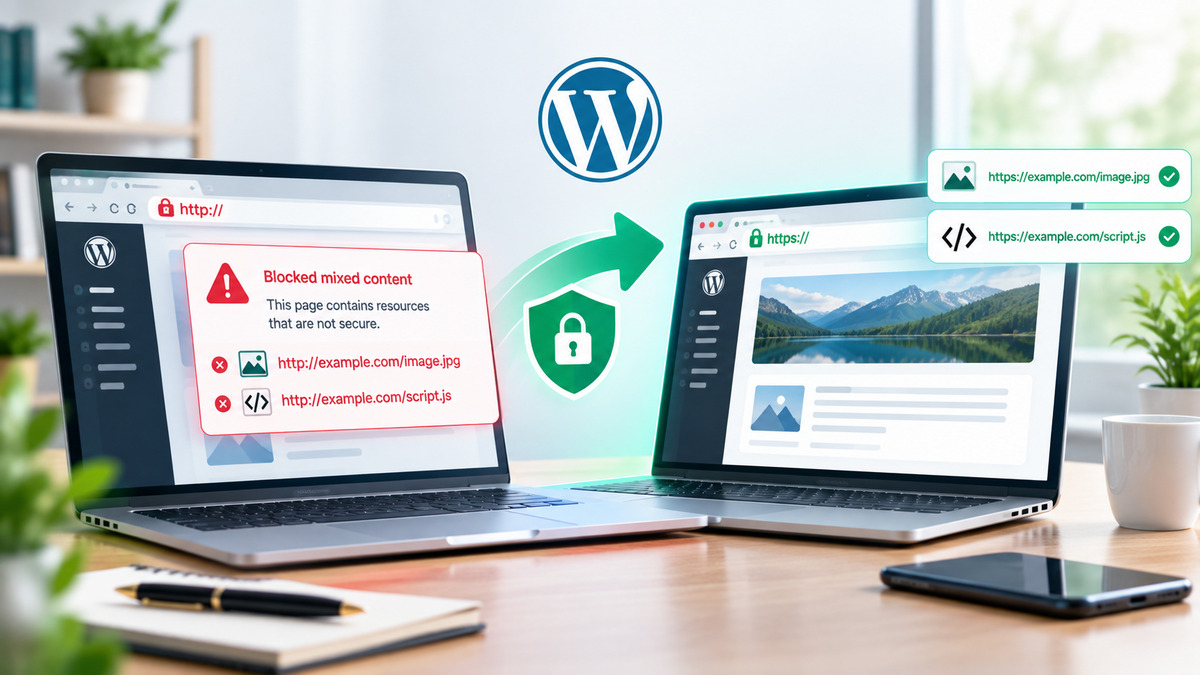
An SSL certificate is only half the battle. After installing SSL in cPanel, visitors may still land on the old http:// address, or WordPress may load images, scripts, and stylesheets over insecure HTTP. This creates mixed content warnings, broken padlocks in browsers, and weaker SEO signals.
This comprehensive guide continues from installing an SSL certificate using cPanel. You will learn to force every request to HTTPS, update WordPress to use secure URLs, and eliminate mixed content that still points to http://.
Prerequisites and Pre-Flight Checklist
Before you begin, confirm the following:
|
Requirement |
How to Verify |
|
SSL is installed for your domain in cPanel |
Check Let's Encrypt, AutoSSL, or purchased certificate status |
|
HTTPS shows a valid padlock |
Open https://yourdomain.com, it must show secure padlock, not "Not secure" |
|
WordPress admin access |
Log into https://yourdomain.com/wp-admin |
|
File access ready |
cPanel File Manager or FTP credentials available |
Why HTTPS Redirect and Mixed Content Matter
-
SSL Certificate: Encrypts the connection between browser and server
-
HTTPS Redirect: Tells browsers and search engines that HTTPS is the canonical address
-
Mixed Content: Occurs when an HTTPS page still pulls assets (images, scripts, styles) over HTTP
The Issues and Errors
Modern browsers block or warn on mixed content assets, causing:
-
Pages to look broken even with SSL installed
-
"Not Secure" warnings in the address bar
-
Potential security vulnerabilities for logins and forms
-
Duplicate HTTP/HTTPS indexing in search engines
-
Weakened SEO signals
How to Fix
Fixing both HTTPS redirect and mixed content:
-
Keeps the padlock clean and trustworthy
-
Protects user logins and form submissions
-
Avoids duplicate content issues in search engines
-
Ensures all resources load securely
Force HTTPS Redirect in cPanel (.htaccess)
Most cPanel shared hosting plans use Apache servers. The cleanest server-side redirect method is through your site's .htaccess file.
Detailed Procedure
-
Log into your hosting account's cPanel dashboard
-
Navigate to the "Files" section
-
Click on "File Manager" icon
-
A new window or tab will open showing your file structure
-
Go to your site's document root directory
-
This is usually:
-
public_html (for main domain)
-
public_html/yourdomain.com (for addon domains)
-
public_html/subdirectory (for subdirectory installations)
-
Click "Settings" in the top-right corner of File Manager
-
Check "Show Hidden Files (dotfiles)"
-
Click "Save"
-
The .htaccess file should now be visible
-
Right-click on .htaccess
-
Select "Edit"
-
If prompted about encoding, click "Edit" again
-
If the file does not exist: Create a new file named .htaccess in the document root
Add these lines near the top of the file, before WordPress's own rewrite block:
apache
# Force HTTPS Redirect
RewriteEngine On
RewriteCond %{HTTPS} off
RewriteRule ^(.*)$ https://%{HTTP_HOST}%{REQUEST_URI} [L,R=301]
Important Placement Note:
-
If WordPress already has a # BEGIN WordPress section, place the HTTPS rules above that block, not inside it
-
Saving inside the WordPress block can cause the rules to be overwritten when permalinks are flushed
-
The # BEGIN WordPress and # END WordPress markers are managed by WordPress
-
Click "Save Changes" button
-
Close the editor
-
Open a private/incognito browser window
-
Visit http://yourdomain.com
-
It should automatically redirect to https://yourdomain.com
Cloudflare Users: Critical Configuration
If you use Cloudflare as your CDN/DNS provider:
|
SSL Mode |
Recommendation |
|
Flexible |
Avoid this mode causes redirect loops with .htaccess HTTPS rules |
|
Full |
Use after origin certificate is valid |
|
Full (strict) |
This is most secure option |
How to Set Cloudflare SSL Mode:
-
Log into Cloudflare dashboard
-
Select your domain
-
Go to SSL/TLS → Overview
-
Set encryption mode to "Full" or "Full (strict)"
Update WordPress Site URL to HTTPS
WordPress stores your site address in the database. If these values still use http://, admin redirects, media URLs, and generated links will continue producing mixed content.
Through WordPress Admin
-
Navigate to https://yourdomain.com/wp-admin
-
Log in with your credentials
-
Go to Settings → General
Update Both URL Fields
|
Field |
Correct Value |
|
WordPress Address (URL) |
https://yourdomain.com |
|
Site Address (URL) |
https://yourdomain.com |
-
Use the exact domain you want as canonical
-
Choose either www or non-www not both
-
Do NOT mix: https://www. in one field and https:// without www in the other
-
Example of WRONG configuration:
-
WordPress Address: https://www.yourdomain.com
-
Site Address: https://yourdomain.com
-
Click "Save Changes" button
-
You may be asked to log in again
Emergency Database Fix (If Locked Out)
If you're locked out of admin due to a bad URL change:
-
Open cPanel File Manager
-
Navigate to your WordPress root directory
-
Right-click wp-config.php → Edit
Add these lines before the line that says /* That's all, stop editing! */:
php
define('WP_HOME', 'https://yourdomain.com');
define('WP_SITEURL', 'https://yourdomain.com');
-
Save the file
-
Log into WordPress admin
-
Correct Settings → General as described above
-
After confirming database values are correct in Settings → General
-
Return to wp-config.php
-
Remove the two define() lines you added
-
Save the file
Identify Mixed Content Warnings
Before fixing mixed content, you need to identify all instances.
Browser Develope
-
Visit your homepage over HTTPS
-
Right-click anywhere on the page
-
Select "Inspect" (Chrome/Edge) or "Inspect Element" (Firefox)
-
Click on the "Console" tab in Developer Tools
-
Look for messages containing:
-
"Mixed Content"
-
"Blocked"
-
http:// requests for images, CSS, or JavaScript
-
Click on the "Security" tab
-
Review any warnings about insecure content
-
Note which URLs are still using HTTP
-
Record the specific file paths
Common Sources of Mixed Content
|
Source |
Description |
|
Post/Page Content |
Images inserted with full http:// links |
|
Theme Options |
Custom CSS or theme settings pointing to HTTP assets |
|
Header/Footer Files |
Old hardcoded URLs in header.php or footer.php |
|
Plugins |
Scripts loading from http:// CDNs or external sources |
|
Widgets |
Hardcoded HTTP links in widget content |
|
Sliders |
Slide images with HTTP URLs |
|
Page Builders |
Elementor, Divi, etc. storing absolute HTTP URLs |
|
Custom Fields |
Meta values containing HTTP URLs |
Testing Multiple Pages
Test these pages to catch all mixed content:
-
Homepage
-
Blog post pages
-
Contact page
-
About page
-
Any page with images or embedded content
-
Archive pages
Replace HTTP URLs Inside WordPress
Plugins and CLI can be used for this process
Better Search Replace Plugin
For a full database replacement after SSL installation, use a proper search-replace tool that handles serialized data correctly.
Do NOT run raw SQL on wp_options or other tables unless you fully understand serialized data. Improper replacement can corrupt your database.
-
Go to Plugins → Add New
-
Search for "Better Search Replace"
-
Click "Install Now" then "Activate"
-
Go to Tools → Better Search Replace
|
Field |
Value |
|
Search for |
http://yourdomain.com |
|
Replace with |
https://yourdomain.com |
|
Select tables |
Check all tables (or select specific ones) |
|
Run as dry run |
Check this first |
-
Click "Run Search/Replace"
-
Review the match count results
-
Verify the matches are what you expect
-
Uncheck "Run as dry run"
-
Click "Run Search/Replace"
-
Wait for completion
If you also used www hostname, repeat with:
-
Search for: http://www.yourdomain.com
-
Replace with: https://www.yourdomain.com
Alternative Method: WP-CLI (SSH Required)
If you have SSH access:
bash
wp search-replace 'http://yourdomain.com' 'https://yourdomain.com' --all-tables --dry-run
wp search-replace 'http://yourdomain.com' 'https://yourdomain.com' --all-tables
wp search-replace 'http://www.yourdomain.com' 'https://www.yourdomain.com' --all-tables
Manual Fixes for Small Sites
-
Go to Media → Library
-
Click on each image
-
Verify the File URL uses HTTPS
-
Re-upload critical images if necessary
-
Edit each post/page
-
Switch to Code/HTML view
-
Find and replace http:// with https:// in image sources and links
-
Check header logo URL
-
Check background image URL
-
Review custom CSS for http:// references
-
Go to Appearance → Widgets
-
Review each widget for hardcoded HTTP links
-
Update image widgets, text widgets, and custom HTML widgets
-
Go to Appearance → Menus
-
Check custom links for HTTP URLs
-
Update to HTTPS
-
Elementor: Use Tools → Replace URL, then regenerate CSS
-
Divi: Check theme options for HTTP URLs
-
Beaver Builder: Review saved templates and modules
Post-Replacement Cleanup
-
If using a caching plugin (W3 Total Cache, WP Super Cache, etc.)
-
Purge/clear all caches
-
Log into Cloudflare if you use it
-
Go to Caching → Configuration
-
Click "Purge Everything"
-
Hard refresh: Ctrl + Shift + R (Windows) or Cmd + Shift + R (Mac)
Fix Remaining Theme and Plugin Mixed Content
If the Console still shows HTTP assets after database replacement:
Theme Troubleshooting
-
Go to Appearance → Themes
-
Activate "Twenty Twenty-Four" or another default theme
-
Check if warnings disappear
-
If warnings disappear → Problem is in your active theme's hardcoded URLs
-
If warnings persist → Problem is in plugins or other sources
-
Check header.php for hardcoded HTTP URLs
-
Check footer.php for HTTP script/style references
-
Review theme functions.php for enqueued HTTP resources
Plugin Troubleshooting
-
Go to Plugins → Installed Plugins
-
Deactivate all plugins
-
Reactivate one by one (or in small groups)
-
Check Console after each activation
-
Identify the plugin causing mixed content
-
Many older plugins hardcode HTTP CDN links
-
Update to latest versions
-
Check plugin settings for URL configurations
Third-Party Scripts and CDNs
-
Change http:// to https:// in script tags
-
Or use protocol-relative URLs: //cdn.example.com/script.js
-
Note: Only use protocol-relative URLs when the provider supports HTTPS
|
Old URL |
New URL |
|
http://fonts.googleapis.com/... |
https://fonts.googleapis.com/... |
|
http://ajax.googleapis.com/... |
https://ajax.googleapis.com/... |
|
http://code.jquery.com/... |
https://code.jquery.com/... |
Avoid "force HTTPS" browser plugins as your only long-term fix. They can:
-
Hide broken URLs from your view
-
Not affect what Google and other crawlers see
-
Leave insecure references in your HTML source
Confirm Redirects, Canonical Tags, and the Padlock
Test Redirects on your website
|
Test URL |
Expected Result |
|
http://yourdomain.com |
301 redirect to https://yourdomain.com |
|
http://www.yourdomain.com |
Redirects consistently with preferred host |
|
https://www.yourdomain.com |
Resolves consistently with preferred host |
-
Open homepage in browser
-
Confirm padlock icon appears
-
No "Not secure" warning
-
No mixed content warnings in Console
Check these pages for clean padlock:
-
Homepage
-
Blog post
-
Contact page
-
About page
-
Any page with forms
-
Right-click page → "View Page Source"
-
Search for http://yourdomain.com
-
It should NOT appear for local assets
-
External links to other sites may still use HTTP (this is okay)
-
If connected, log into Google Search Console
-
Monitor Coverage report for HTTP/HTTPS duplicates
-
Check after a few days for indexing changes
Optional Security Hardening: HSTS
Only enable HSTS after HTTPS works perfectly on all subdomains.
Add to .htaccess (after confirming HTTPS works):
apache
# HSTS (HTTP Strict Transport Security)
<IfModule mod_headers.c>
Header always set Strict-Transport-Security "max-age=31536000; includeSubDomains"
</IfModule>
HSTS Warnings:
-
Only enable when EVERY subdomain you use has valid SSL
-
Start with a short max-age (e.g., 300) for testing
-
Increase gradually (e.g., 31536000 = 1 year) once confirmed working
Common Problems and Quick Fixes
The usual problems that occur after HTTPS fix
Redirect Loop (ERR_TOO_MANY_REDIRECTS)
-
Browser shows "too many redirects" error
-
Page never loads
-
Usually Cloudflare Flexible SSL combined with origin HTTPS redirect
Fix:
-
Set Cloudflare SSL to Full or Full (strict)
-
OR temporarily remove the .htaccess HTTPS block
-
Correct SSL mode in Cloudflare
-
Re-add .htaccess rules
Admin Still Loads Over HTTP
-
WordPress admin shows "Not Secure"
-
Mixed content warnings in admin
Solution:
-
Update Site URL settings (Step 2)
-
Clear cookies for the domain
-
Hard-refresh browser (Ctrl + Shift + R)
-
If needed, add to wp-config.php:
php
define('FORCE_SSL_ADMIN', true);
Images Broken After Replace
-
Images show broken image icon
-
404 errors for image files
Cause:
-
Accidentally replaced a CDN hostname
-
Replaced URLs that shouldn't have been changed
Fix:
-
Restore from backup
-
Replace ONLY your domain's HTTP URL
-
Do NOT replace every http:// string in the database
SSL Secure on Homepage But Not /wp-admin
-
Homepage shows padlock
-
Admin area shows "Not Secure"
-
Certificate not covering all necessary domains
Solution:
-
Install/repair certificate for:
-
Apex domain (yourdomain.com)
-
WWW subdomain (www.yourdomain.com)
-
Any admin subdomain you use
-
Re-issue Let's Encrypt certificate to include all domains
Some Pages Still Show Mixed Content
-
Most pages secure
-
Specific pages show warnings
Solution:
-
Check page-specific content (images, embeds)
-
Review page builder settings for that page
-
Check for custom fields with HTTP URLs
-
Inspect widgets used only on those pages
Final Checks and Maintenance
You have completed the post-SSL steps that most WordPress sites miss:
-
Server-side HTTPS redirect in cPanel .htaccess
-
WordPress Address and Site Address set to HTTPS
-
Database and content URLs upgraded from HTTP to HTTPS
-
Theme/plugin mixed content cleared
-
Browser padlock verified without warnings
-
Redirects tested from HTTP to HTTPS
-
Admin area loads securely
Keep SSL Renewal Active
-
Enable automatic SSL renewal in cPanel
-
Let's Encrypt certificates expire every 90 days
-
AutoSSL handles renewal automatically
-
Check renewal status periodically
Monitor for New Mixed Content
-
New plugins may introduce HTTP assets
-
Theme updates may change URLs
-
Regular Console checks recommended
Regular Audits
-
Monthly: Check homepage padlock
-
Quarterly: Full site scan for mixed content
-
After updates: Verify SSL still working
Additional Resources
-
If you need help installing SSL first, follow the guide on installing an SSL certificate using cPanel
-
Return to this article to finish redirect and mixed content cleanup
-
Contact your wordpress hosting provider if issues persist